






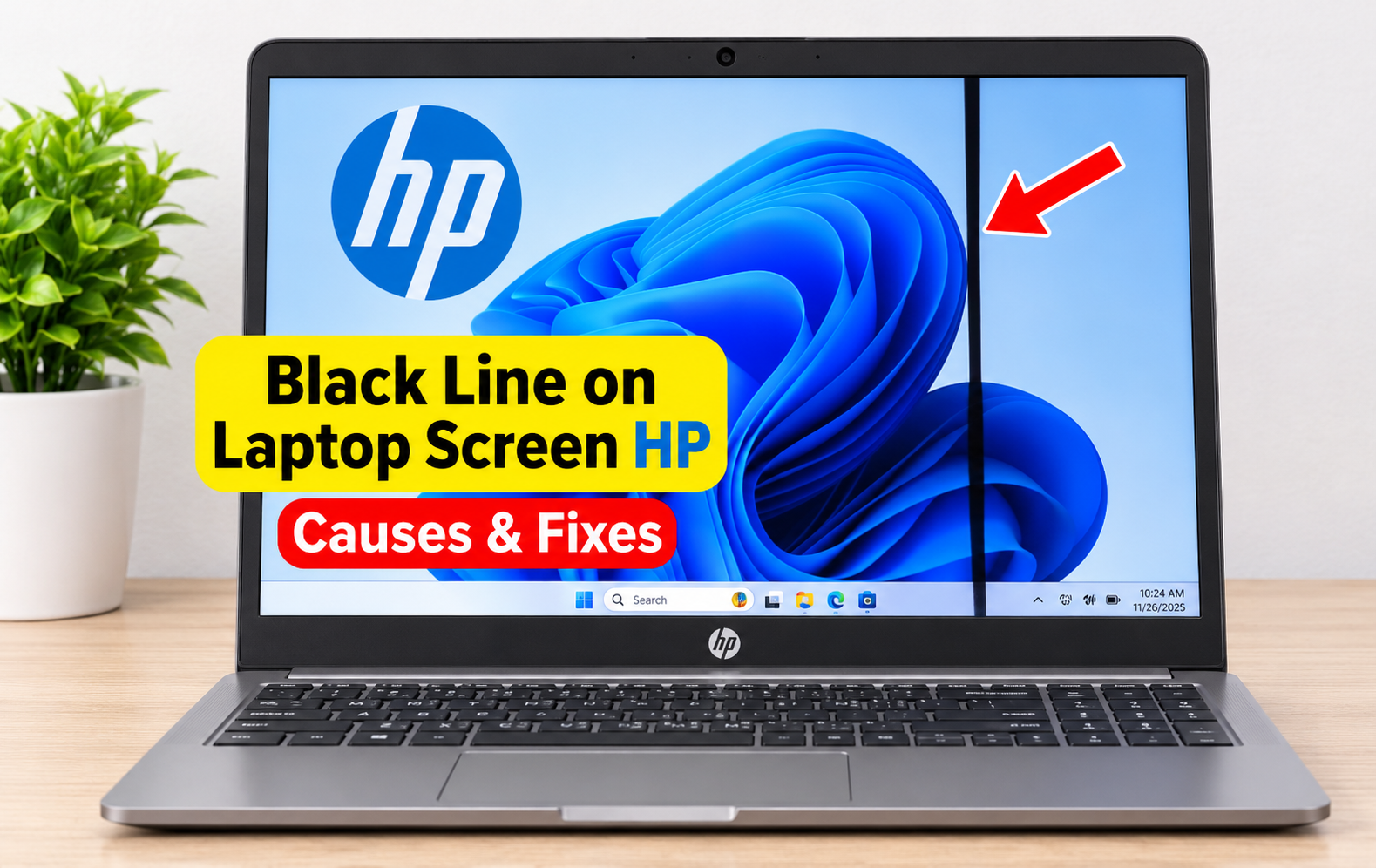
Seeing a black line on laptop screen HP can be frustrating, especially when it suddenly appears while working, studying, or watching videos. This problem may indicate a display panel issue, loose internal connection, outdated graphics driver, or physical damage. Understanding the cause can help you find the right solution without spending money on unnecessary repairs.
What Causes a Black Line on an HP Laptop Screen?
A black line on an HP laptop display can develop for several reasons. Sometimes, the issue comes from Windows or graphics software, while other times, it indicates a hardware problem that requires professional attention.
Here are the most common causes:
- Damaged LCD panel: Physical pressure, accidental drops, or impacts can damage the display.
- Loose display cable: A damaged or poorly connected internal cable can interrupt the display signal.
- Graphics driver problems: Outdated or corrupted graphics drivers can cause unusual screen behavior.
- Dead or stuck pixels: Individual pixels may stop displaying colors correctly, creating dark spots or small lines.
- Hardware failure: Problems involving the graphics system or display components can produce persistent lines.
According to HP’s official troubleshooting guidance, visible lines, flickering, and distorted colors can indicate a screen or hardware problem that requires repair.
How to Fix a Black Line on Laptop Screen HP
Before purchasing a replacement display, try these troubleshooting methods to identify whether the issue is software-related or hardware-related.
1. Restart Your HP Laptop
Restarting your computer is a simple first step. Temporary graphics glitches or Windows display errors can sometimes disappear after a restart.
Follow these steps:
- Save your open files.
- Click the Windows Start menu.
- Select Power.
- Choose Restart.
- Check whether the black line disappears.
If the line remains visible after restarting, continue with the following methods.
2. Update Your Graphics Drivers
An outdated or corrupted display driver can sometimes cause visual problems. Updating the graphics driver may resolve issues caused by software incompatibility.
To update your driver:
- Right-click the Windows Start button.
- Open Device Manager.
- Expand Display adapters.
- Right-click your Intel, AMD, or NVIDIA graphics device.
- Select Update driver.
- Follow the instructions on your screen.
You can also visit the official HP Software and Driver Downloads page and search for your laptop model.
Restart your computer after installing available updates.
3. Connect Your Laptop to an External Monitor
One of the most useful ways to diagnose a black line on an HP laptop screen is to connect an external monitor or television.
Use an HDMI or compatible USB-C connection.
Observe the results:
- External monitor looks normal: The built-in laptop display or its internal cable may be damaged.
- External monitor also shows lines: The graphics hardware, driver, or software may be responsible.
This test helps narrow down the problem before paying for repairs.
4. Check the Screen During BIOS Startup
Another useful method is checking whether the black line appears before Windows loads.
Follow these steps:
- Restart your HP laptop.
- Press the Esc key repeatedly during startup.
- Open BIOS Setup using F10, or access HP PC Hardware Diagnostics using F2 when available.
- Observe the display for black lines.
If the line appears in BIOS or the hardware diagnostics environment, a hardware issue becomes more likely because Windows drivers are not responsible for that startup display.
5. Reset the Graphics Driver
Sometimes, Windows experiences a temporary graphics processing problem.
Press the following keyboard shortcut:
Windows + Ctrl + Shift + B
Windows attempts to reset the graphics driver. You may hear a short beep or notice the screen flicker.
This method is worth trying when the black line appears temporarily or alongside other graphics glitches. However, it cannot repair a physically damaged LCD panel.
When Does an HP Laptop Screen Need Replacement?
Not every black line can be fixed through software settings. If a line remains visible during startup, appears in multiple applications, or becomes worse over time, the display panel or internal connection may need inspection.
Common warning signs include:
- Multiple vertical or horizontal lines.
- Black patches spreading across the display.
- Visible cracks or pressure marks.
- Flickering combined with colored lines.
- A display that changes when the laptop lid moves.
HP explains that damaged LCD panels may show lines, patterns, and black spots. It recommends using an authorized repair center for damaged displays.
Avoid pressing the affected screen or attempting to open the display assembly yourself. Incorrect repairs can cause additional damage and may affect warranty coverage.
How Much Does It Cost to Repair an HP Laptop Screen?
The repair cost depends on your HP laptop model, screen size, resolution, panel technology, and labor charges.
For example, replacing a standard HD display may cost less than replacing a high-resolution touchscreen or OLED panel.
Before approving a repair, consider these steps:
- Check whether your laptop is still under warranty.
- Ask an authorized repair center for a diagnosis.
- Request a replacement screen estimate.
- Compare the repair cost with the laptop’s current value.
- Confirm whether the replacement component is compatible with your model.
If the built-in screen is damaged but the laptop still works, connecting an external monitor can provide a temporary solution.
How to Prevent Black Lines on an HP Laptop Screen
Preventive care can reduce the risk of display damage and help your laptop last longer.
Follow these practical tips:
- Avoid placing heavy objects on your laptop.
- Never close the lid when objects are between the keyboard and screen.
- Use a protective laptop bag when traveling.
- Clean the display with a soft microfiber cloth.
- Keep Windows and graphics drivers updated.
- Avoid applying pressure to the LCD panel.
- Have unusual display problems checked early.
These precautions are especially important for students, remote workers, and people who frequently travel with their laptops.
Conclusion
A black line on laptop screen HP can result from outdated graphics drivers, damaged display cables, defective pixels, or a failing LCD panel. Restarting the laptop, updating drivers, connecting an external monitor, and checking BIOS can help identify the underlying cause.
If the line remains visible during hardware diagnostics or continues spreading, professional inspection is the safest option.
Read More: BadSeed Tech: Everything to Know About the Technology and Gaming Creator